Free tool
HEIC to JPG
Convert iPhone HEIC photos to JPG in your browser. As many as you like, nothing uploaded, no location kept. Free, no sign-up.
Nothing is uploaded. Your photos are converted on this device and never leave it.
No location in your JPGs. Where and when a photo was taken is left out.
made from a few selfies
Want photos like these?
Luala makes a photo shoot of you from a few selfies: a café, a city walk, golden light. Your first 8 photos are free.
Start your shoot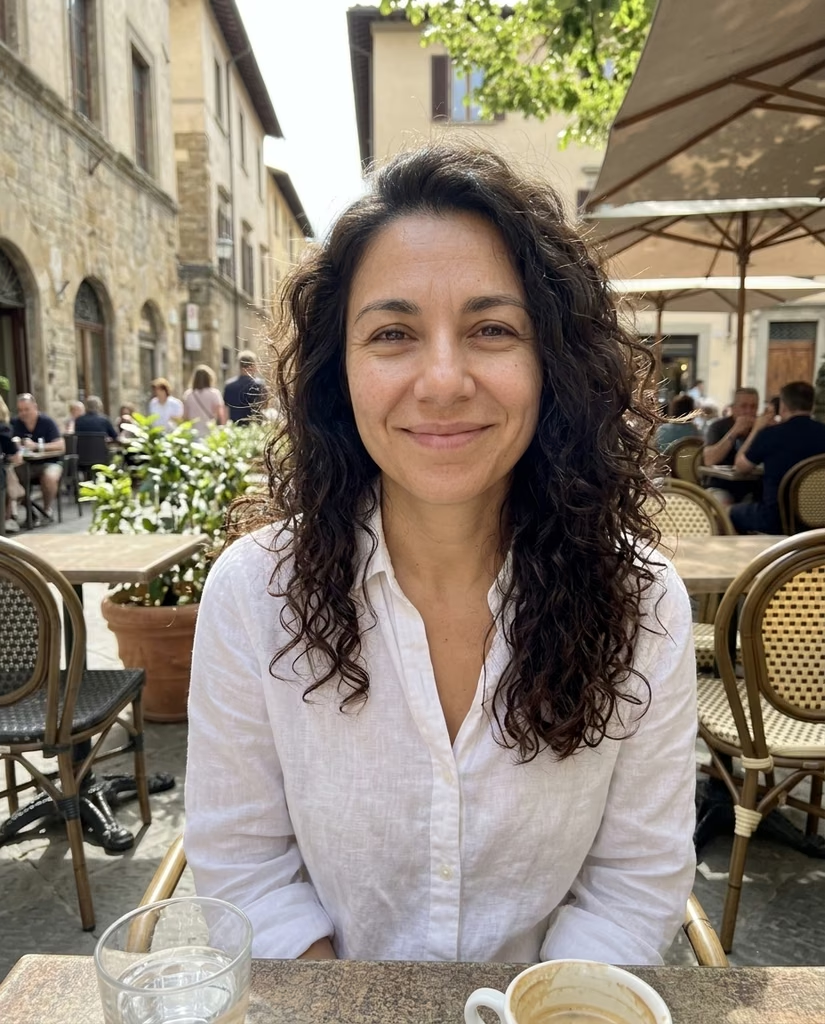


Why your iPhone saves HEIC
Your iPhone saves photos as HEIC. The files are small and sharp, but plenty of places won't take them: Windows asks for an add-on before it opens one, and many upload forms turn them away.
Drop your photos here and each one comes back as a JPG with the same name, so IMG_1234.HEIC becomes IMG_1234.jpg. Your browser does the converting, on this device.
Questions
Are my photos uploaded?
No. Your browser converts them on this device. They aren't sent to Luala or anywhere else.
Do I lose quality?
Each JPG keeps the photo's full size and is saved at high quality. Expect it to be bigger than the HEIC: JPG needs more space for the same picture.
What happens to the location and camera details?
They're left out. A JPG from here carries the picture only, not where or when it was taken or on which phone.
How many photos can I convert at once?
As many as you choose. They're converted one after another, and once two are done you can download them all as one zip.
Why was a file skipped?
It wasn't a HEIC photo. This tool reads HEIC and HEIF files only; a JPG or PNG already opens everywhere.
How do I stop my iPhone saving HEIC?
In Settings, open Camera, then Formats, and choose Most Compatible. New photos are saved as JPG from then on; the ones you already have stay HEIC.